
How to put a QR code on your business card so it actually scans
A practical guide to QR codes on business cards, flyers, shop counters and name badges: how big to print them, the quiet zone, contrast, logos, what to link to, and how to test before you print 500.
By Wesley Sing, Founder of Newbi5 min read
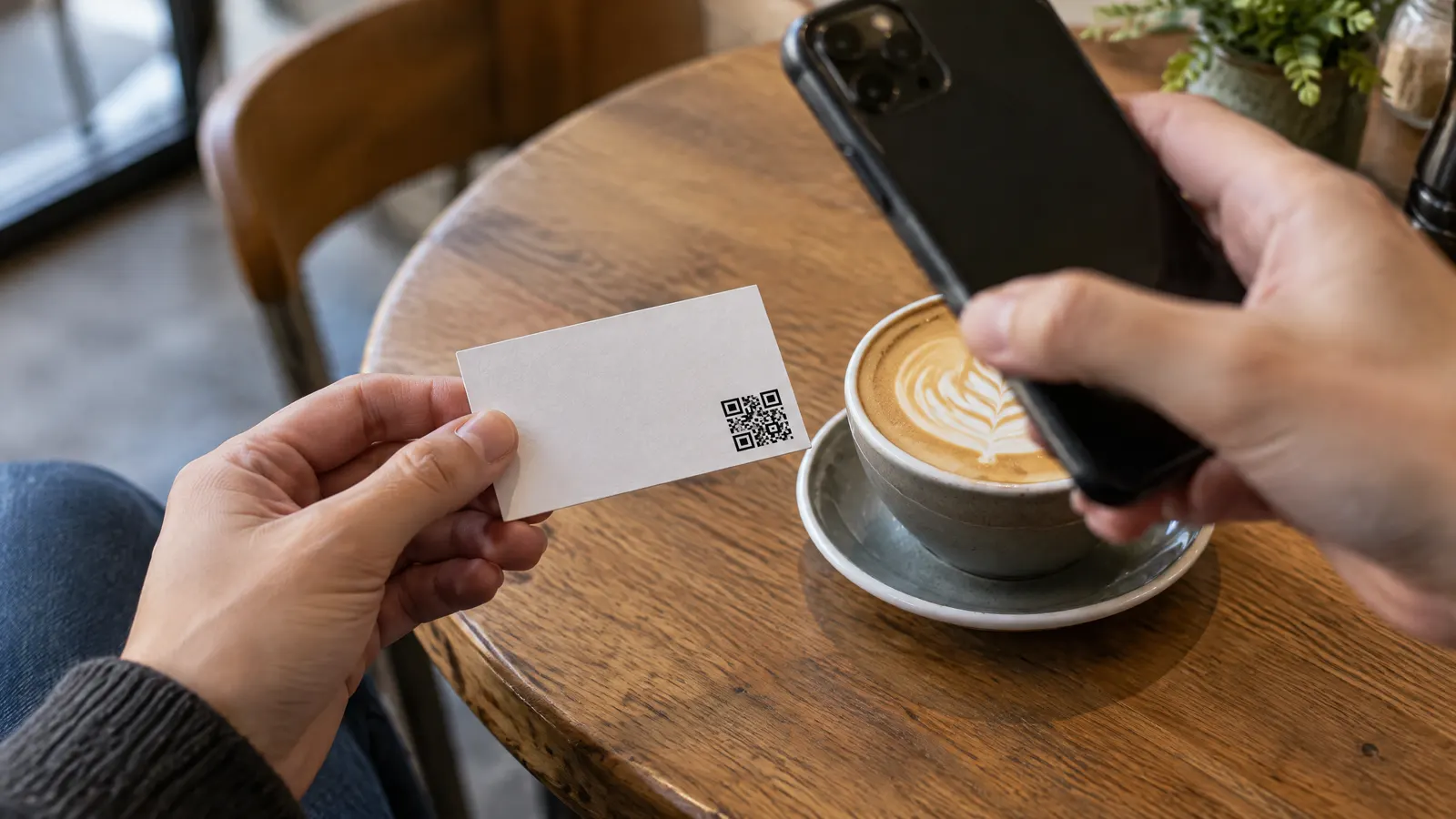
A QR code that does not scan is worse than no code at all. Someone holds up their phone, nothing happens, they try again, and then they put your card in a pocket they will never empty. I have seen it at more networking events than I can count, usually with a beautiful card and a code the size of a fingernail.
Almost every failure has a simple cause. Here is how to put a QR code on a business card, flyer, counter sign or name badge so it works first time.
1. Print it big enough for the distance
Bitly, the link and QR code company, recommends at least 2 cm by 2 cm for most scanners, and a rule of thumb of about 10:1 between scanning distance and code size. A 2 cm code scans comfortably from about 20 cm away.
- Business card: 2 to 2.5 cm, because people hold it in their hand.
- Name badge: people scan from a step away, so aim for 3 to 4 cm.
- Counter or reception sign: scanned from a metre away, it needs to be about 10 cm.
- Flyer or poster on a wall: work out where people will stand and divide that distance by ten.
2. Leave a clear border around it
Scanners find a QR code partly by the empty space around it. Denso Wave, the company that invented the QR code, says it needs a four-module-wide margin on all sides, a module being one of the small squares that make up the code. This is the quiet zone.
So no border line, text, pattern or edge of the card right up against the code. If your designer tucks it into a corner, keep a clear gap before the trim.
3. Dark on light, with strong contrast
GS1, the organisation behind retail barcode standards, advises dark colours on a light background, with black and white being the best combination, and recommends against inverting the code (light squares on dark), because not every scanner handles it. Their guidance is written for shop scanners, but phone cameras and scanning apps vary too, and a code printed the normal way round works everywhere.
If your card is black or navy, put the code on a white or cream panel rather than printing it in white. A brand colour is fine for the dark squares if it is genuinely dark; pale greys, golds and pastels are where codes stop scanning. And watch the finish: gloss lamination and metallic foil reflect light into the camera, so keep the area behind the code matte.
4. Be careful with logos in the middle
A logo in the centre works because QR codes carry spare data for repairing damage. Denso Wave describes four error correction levels, from Level L, which can restore about 7% of the data, to Level H, which can restore about 30%. A logo uses up some of that spare capacity, so:
- Generate the code at Level H if your generator lets you choose.
- Keep the logo small, well under a quarter of the code's width, on a plain background.
- Never cover the three large squares in the corners. The camera uses them to find the code.
A plain code that scans beats a branded one that does not.
5. Decide what the code should hold
This matters more than the design. There are three options.
- Your contact details (a vCard). Scanning offers to save your name, number and email directly, with no internet needed. But the details are frozen into the code, so a new number means a reprint. It also holds more data than a link, and Denso Wave notes that more data needs more modules, so the code is denser and needs printing larger.
- A link to a page you control. The code holds only a web address, so it stays small and simple. Change your number or job title on the page and the printed code shows the new details.
- A "dynamic" code from a QR service. The code holds the service's own short link, which redirects wherever you set. Flexible, but if the company closes or your subscription lapses, the code stops working.
For most cards, a link to a page you control is the best balance. Make sure the page is built for phones and lets people save your contact in one tap.
6. Add a short address and a reason to scan
Some people will not scan: a cracked camera, an old phone, or they would rather type. Print a short, readable web address under the code, without the "https://". It also shows people where the code goes before they scan.
Then say what scanning does. "Scan to save my details", "Scan to book" or "Scan for the price list" gets far more scans than a bare code.
7. Test on real phones before you print the batch
Both main phone platforms scan QR codes without an app. On an iPhone, open the Camera app and point it at the code, then tap the link that appears. On Android, Google says phones running Android 9 or later can scan with the built-in camera app, and Google Lens in Chrome works when the camera does not.
- Print one proof at the real size on the real paper. A code that scans on screen can fail on card stock.
- Try at least three phones, including an older Android and an iPhone, in dim light as well as bright.
- Scan from the distance people will actually stand, and check the page loads quickly on mobile data.
Where Newbi fits
Every Newbi card has its own QR code, which you can download from your dashboard as a PNG, an SVG for your printer, or a ready-to-print PDF. The code points at your card's link, so you can change your number, job title, photo or prices and the printed code keeps working. The one thing to leave alone once you have printed is the card's web address itself.
Newbi uses your card's colours for the code only when they pass a contrast check, keeping dark squares on a light background, and falls back to black on white when they do not. The PNG puts your photo or logo in the middle at the highest error correction level, with a line underneath asking people to scan. Scans are counted separately in your dashboard, so you can see whether the code on your counter is being used. You can try it free for 14 days.
For more ways to share your card, see our guides to making a digital business card for free, sharing it on WhatsApp and adding it to Apple Wallet.
Quick answers
What is the smallest QR code I can put on a business card? About 2 cm by 2 cm for a code held in the hand. Go larger if it holds a lot of data or will be scanned from further away.
Should my QR code hold my contact details or a link? Usually a link to a page you control, because you can update the page without reprinting. A code holding your details works offline but must be reprinted when anything changes.